

Connect to Kafka
The Connect page lets you establish connections between Aurora and your Kafka streams. It provides a simple interface for setting up your data pipeline. Once connected, streaming data is saved to ClickHouse in real time, and you can query and visualize it directly through the Aurora web app.
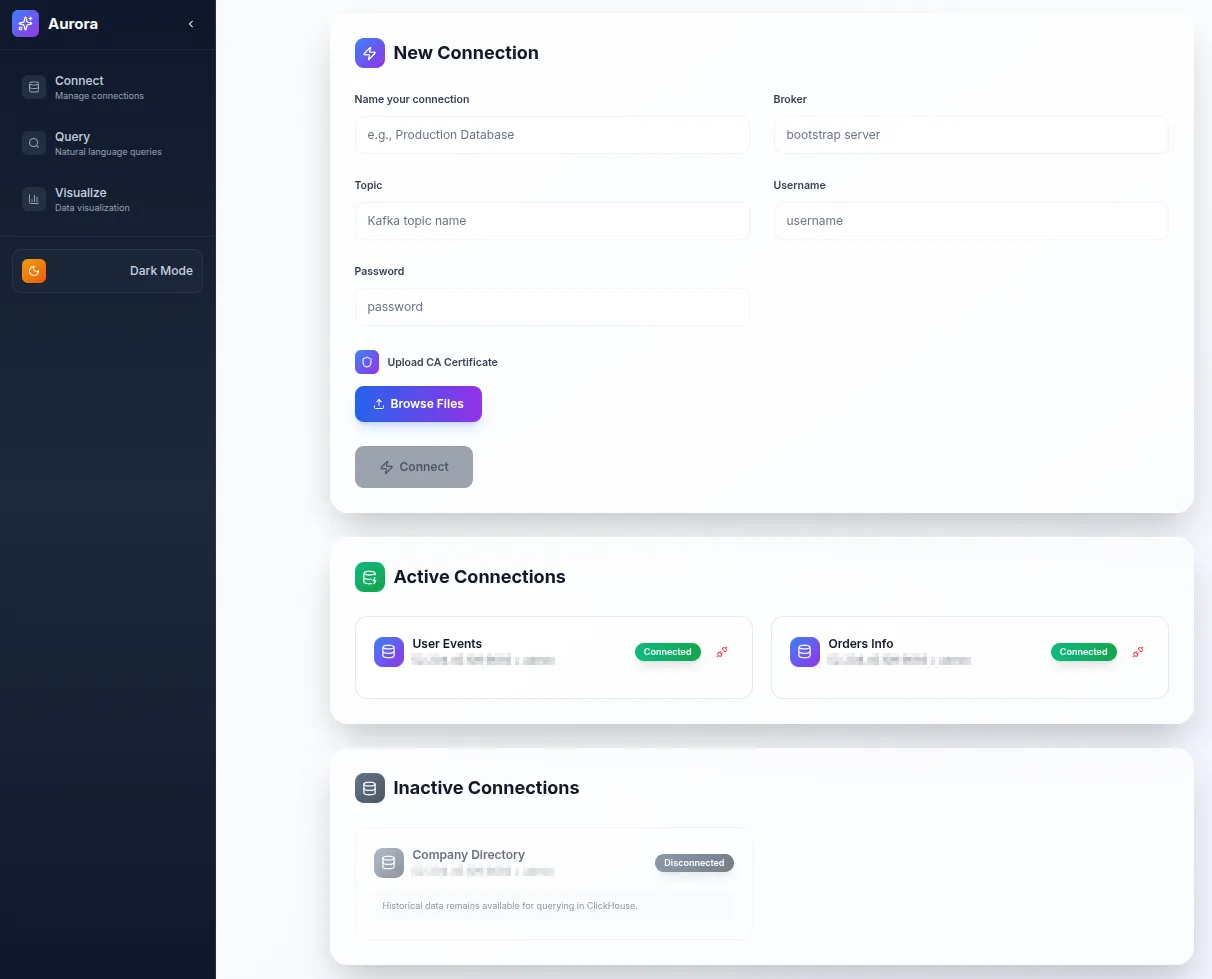
- Access the Connect Page
- Navigate to
/connectin your web browser, or click Connect in the sidebar. - The connection interface will load.
- Navigate to
- Configure Connection Parameters
- Connection Name: Enter a descriptive name for this connection (e.g.,
Production Kafka,Test Cluster). - Kafka Broker: Enter the Kafka broker address (e.g.,
broker.example.com:9093). - Topic: Specify the Kafka topic to connect to.
- Username/Password: Provide your Kafka authentication credentials.
- CA Certificate: Upload your Kafka cluster’s CA certificate.
- Connection Name: Enter a descriptive name for this connection (e.g.,
- Establish Connection
- Verify all parameters are correct.
- Click Connect to start the pipeline.
- The system begins streaming data from Kafka to ClickHouse.
- Monitor Status
- Check the status indicator for connection health.
- Review any error messages or success confirmations.
Troubleshooting
Section titled “Troubleshooting”- Verify the Kafka broker is accessible.
- Check that the certificate is valid.
- Ensure ClickHouse is running and reachable.
- Review connection logs for detailed error information.